A quick and scalable LOD generation workflow can be built using only the Automatic Quality mode. This can be done by creating multiple Optimize mesh operations distinguished by the chosen level of quality.
This example shows the workflow created in InstaLOD Studio however Automatic Quality is also available in InstaLOD Pipeline and our Integrated Plugins.
¶ Creating a new profile
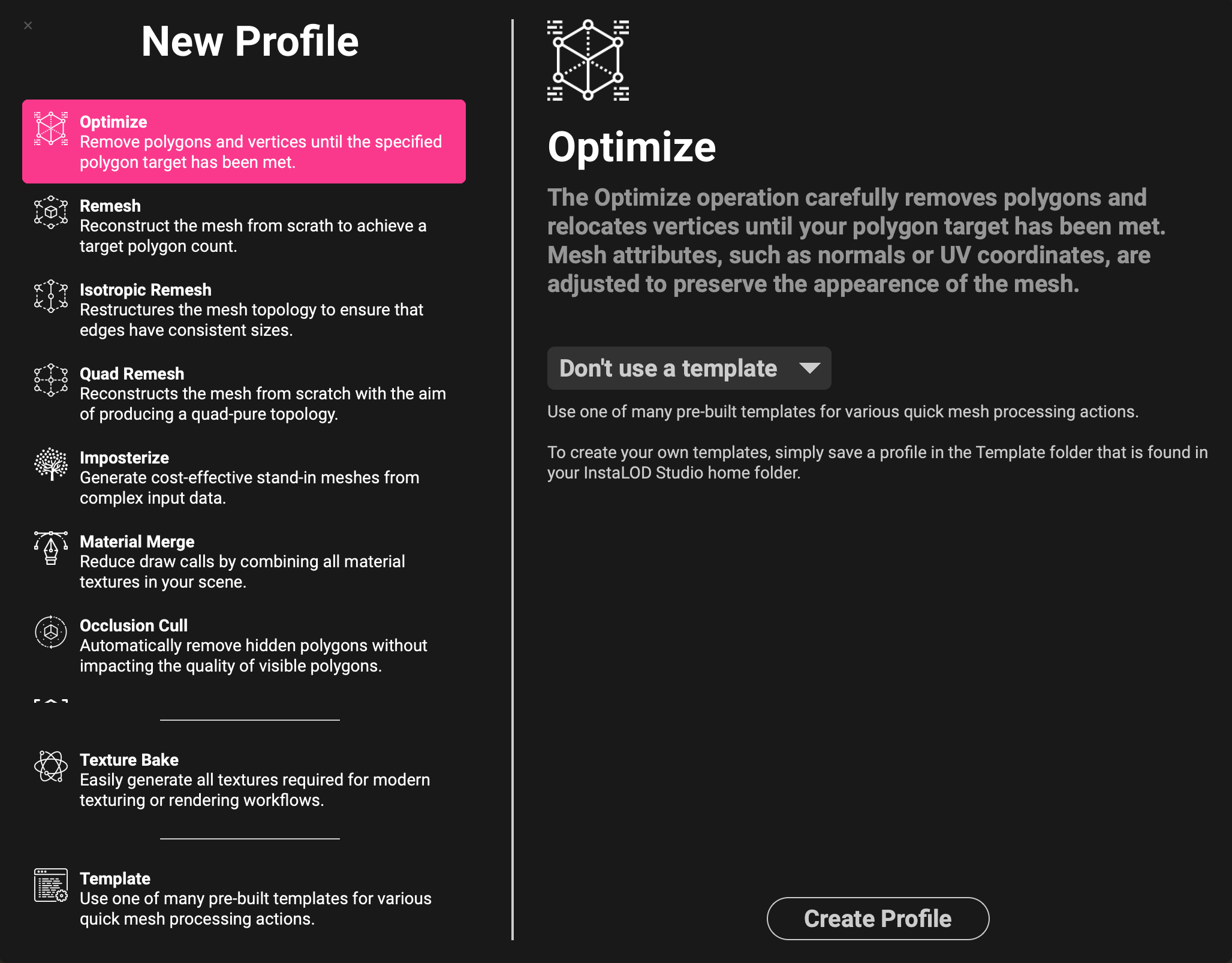
Start by creating a new profile and choosing Optimize as the default mesh operation.
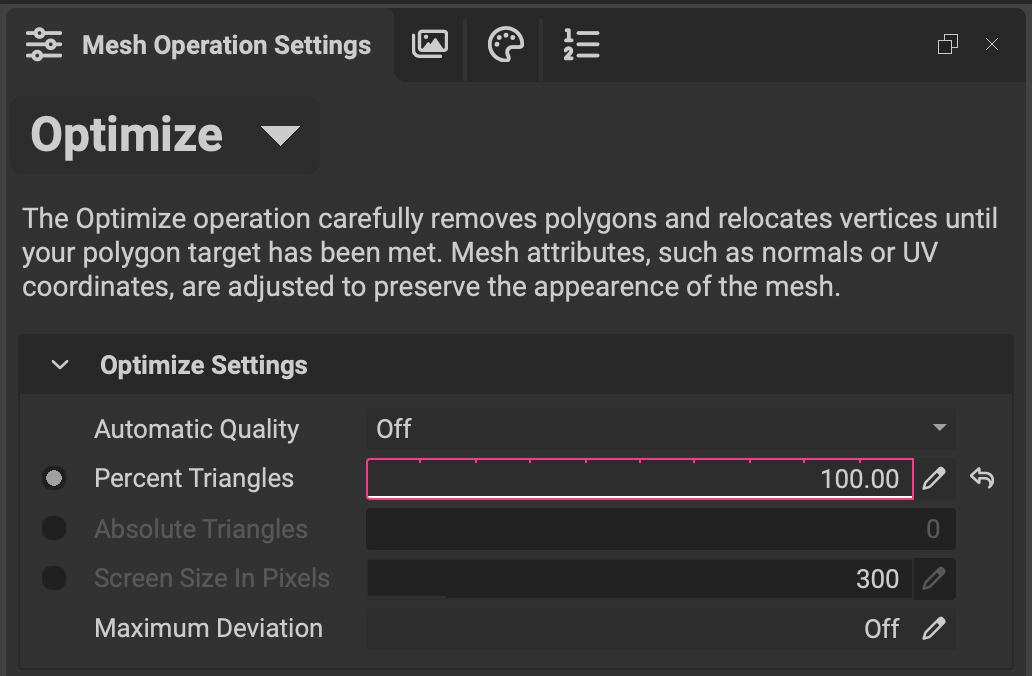
Navigate to the Mesh Operation Settings tab and set the Percent Triangles to "100%" meaning that no optimization will take place.
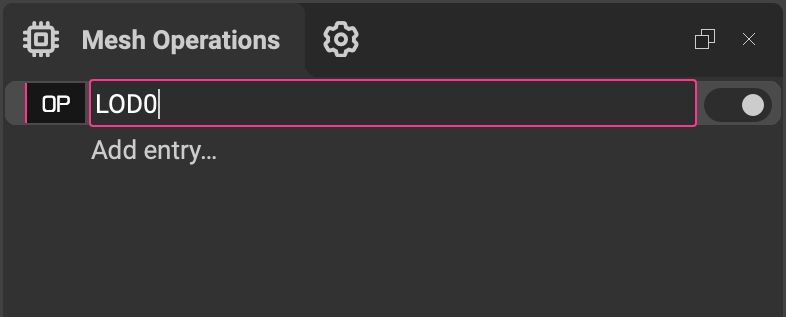
You can rename the mesh operation to "LOD0" in the Mesh Operations panel by double-clicking on the name.
¶ Adding multiple entries
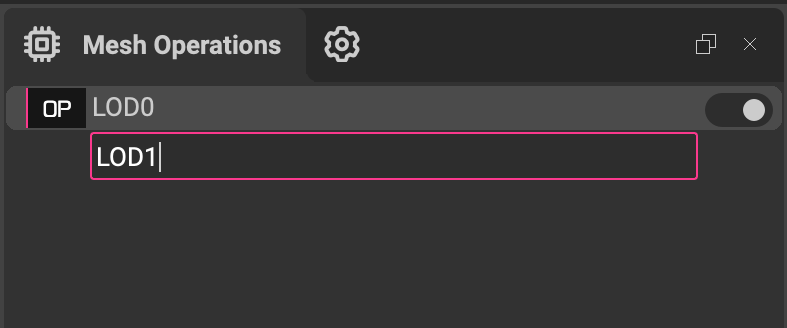
Next add an entry in the Mesh Operations panel and name it "LOD1".
In the Optimize Settings for the Optimizer, change the Automatic Quality dropdown from Off to High
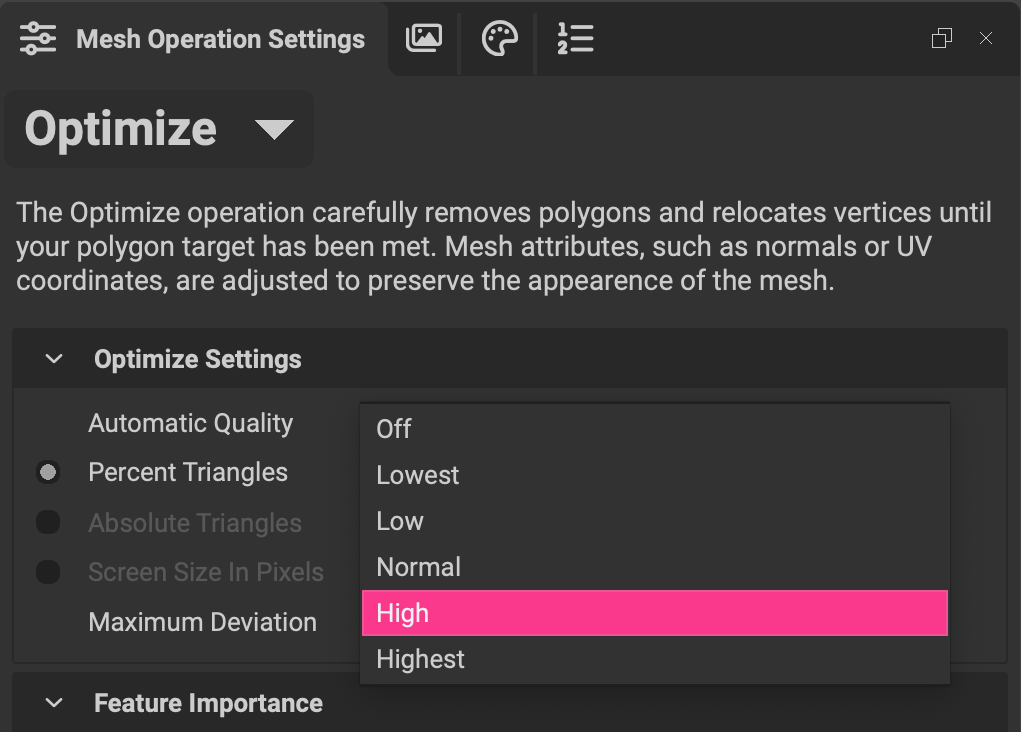
Continue to make new mesh operations for "LOD2", and "LOD3" setting their levels of quality to Normal and Low respectively. You can set all of these levels of quality per-mesh operation according to your particular scenario.
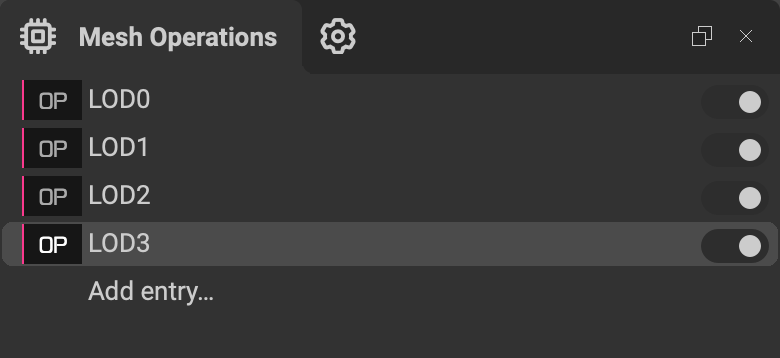
InstaLOD is flexible in that different mesh operations can be run in one profile. For example: LOD1 can be generated with the Polygon Optimizer, LOD2 with the Remesher, and LOD3 - an Imposter.
¶ Executing the workflow
Once all LODs and settings have been set, press Start to run all mesh operations.
Each LOD will be loaded up into tabs across the top of the viewport. To preview each result, hover your mouse over each tab.
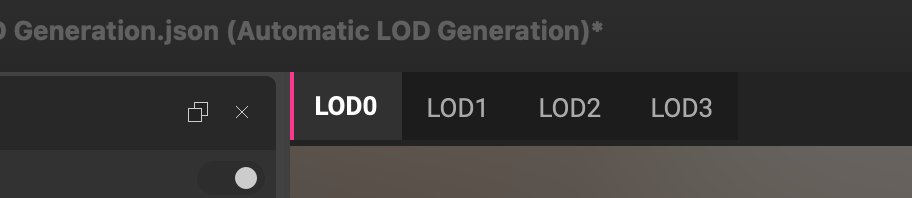
Each LOD can be exported from File > Export Scene. Additionally, the profile can be saved from File > Save Profile. This profile can be reused to process any future mesh or sets of meshes via InstaLOD Studio, InstaLOD Pipeline and our integrations.