¶ What is InstaLOD for Omniverse?
InstaLOD for Omniverse enables you to optimize 3D meshes without having to leave your favorite DCC tool. The integration features a graphical user interface and supports a wide range of mesh optimization operations. Great care has been taken to ensure a high degree of usability and productivity, even when using InstaLOD for Omniverse for the first time.
Please refer to the InstaLOD Pipeline documentation for an overview of all features.
¶ Compatibility
InstaLOD for Omniverse runs on Windows.
InstaLOD for Omniverse is available as a Kit extension and is compatible with NVIDIA Omniverse applications built on the Kit SDK.
Our development team strives to implement support for the most recent software release at the earliest possible opportunity.
¶ Prerequisites
InstaLOD for Omniverse uses InstaLOD Pipeline as backend for optimization operations. InstaLOD Pipeline must be installed before you can start using InstaLOD for Omniverse. Please refer to the InstaLOD Pipeline documentation on how to install InstaLOD Pipeline on your workstation.
InstaLOD for Omniverse supports authorizing licenses and displaying license info from within Omniverse.
¶ Where to Download InstaLOD for Omniverse
Sign in to Abstract ID to manage your licenses and access downloads across the Abstract ecosystem, including InstaLOD, InstaMAT, RSX Engine, and Polyverse.
¶ Installing InstaLOD for Omniverse
To install InstaLOD for Omniverse you need to copy the extension files into an Omniverse extensions directory.
- Download the
InstaLOD for Omniverse (Windows).zipfile. - Extract the archive.
- Copy the extracted
abstract.instalodfolder into an Omniverse extensions directory. - Open the Extension Manager in your Omniverse application and add the parent directory of the
abstract.instalodfolder as an extension search path if it is not already configured. - Search for
InstaLODin the Extension Manager and enable the extension.
If the extension does not appear in the Extension Manager, verify that the search path has been added correctly and that the
abstract.instalodfolder contains theconfig/extension.tomlfile.
It is recommended to delete or uninstall any old extension version before installing a new version.
¶ Activate InstaLOD License
If your machine has already been authorized for InstaLOD you can start using InstaLOD for Omniverse without further action.
If your machine has not yet been authorized, you will be required to enter your license information in the dialog box to authorize your workstation.
¶ Getting Started with Omniverse
Once the extension is enabled, InstaLOD for Omniverse is accessible from the main menu. Navigate to Window > Abstract > InstaLOD or press Shift+I to toggle the InstaLOD window.
On the first start of InstaLOD, it is necessary to point InstaLOD for Omniverse to the installation directory of InstaLOD Pipeline. Click the folder button, browse to the InstaLOD Pipeline installation directory on your workstation, and confirm the selection.
If InstaLOD Pipeline was found in the specified directory, the window contents will change. If your machine has already been authorized for InstaLOD you can start using InstaLOD for Omniverse now. If your machine has not been authorized for InstaLOD yet you can enter your license information in the dialog to authorize your workstation.
Please refer to the InstaLOD Pipeline documentation for an overview of all features.
¶ Optimizing a Mesh
To optimize a mesh select the mesh in the viewport or hierarchy. Select the Optimize operation from the dropdown in the Mesh Operations tab and enter the percentage of triangles for the output mesh in the Percent Triangles text field.
Click the Process Selection button to optimize the mesh. Omniverse will export the geometry for InstaLOD and start the optimization.
Once the geometry has been exported, InstaLOD will execute the mesh operation asynchronously.
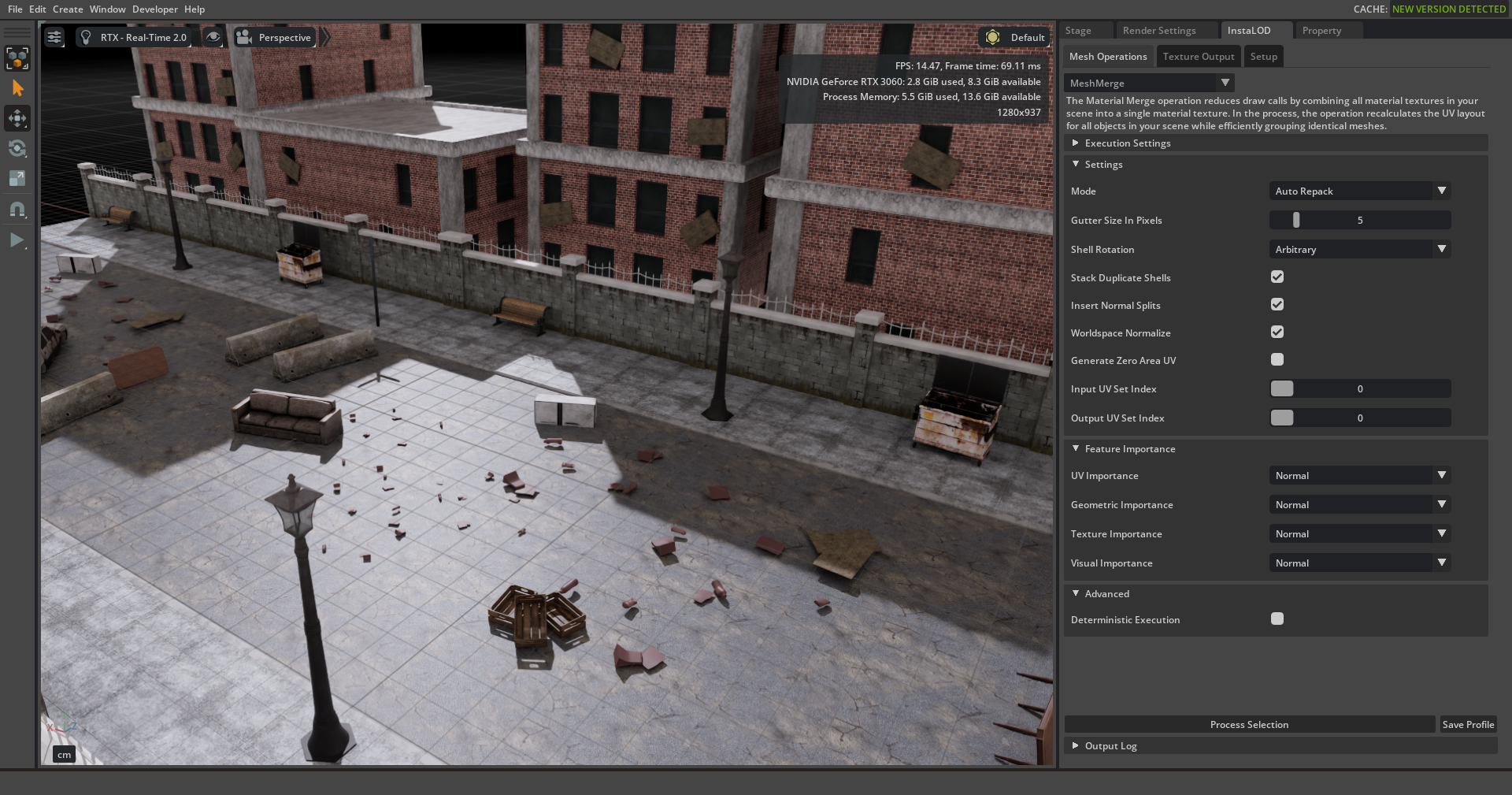
The image above shows the UI of InstaLOD for Omniverse. The InstaLOD window features a dropdown selector for each mesh operation with collapsible settings panels.
¶ Exporting Settings for InstaLOD Pipeline
To export a profile that can be used with InstaLOD Pipeline without modification, configure your mesh operation and click the Save Profile button next to the Process Selection button.
Profiles exported with InstaLOD for Omniverse have a hard-coded profile name of Omniverse. When queuing files with InstaLOD Pipeline, the profile needs to be specified:
InstaLODCmd -profile ExportedWithOmniverse.json -file Data/SM_Zetsuda_130k.fbx Build/SM_Zetsuda_Optimize.fbx Omniverse
¶ Importing Settings from an InstaLOD Profile
To import mesh operation settings from a saved InstaLOD profile, navigate to the Setup tab and select Open Profile.
The integration will apply the settings from the profile to the dedicated mesh operation in the Mesh Operations tab.
To successfully load a profile into the integration, the profile must contain a single mesh operation entry. Profiles containing multiple mesh operations are currently not supported.
¶ Setting the Output Path
For mesh operations that utilize InstaLOD's baker such as Remesh, Imposterize, and Mesh Merge, texture output settings must be configured. The texture output settings can be set in the Texture Output tab.
¶ Known Limitations
InstaLOD for Omniverse is using InstaLOD Pipeline as a processing backend. Meshes are exported from the Omniverse scene to FBX format for processing by InstaLOD Pipeline. Processed results are imported back into the scene as USD. Materials are automatically reconstructed as OmniPBR materials after import, however complex material setups may not be fully preserved during this process.
¶ Website
Please visit http://www.InstaLOD.com to stay up to date!
Thank you for using InstaLOD.